
 Hostiko – Hosting WordPress & WHMCS Theme
  WPCodeBox – WordPress Code Snippets Plugin
  The Cornerstone Website Builder for WordPress
  Coiffure – Hair Salon & Barber WordPress Theme
  Cryptiva – Cyber Security Services Gutenverse FSE WordPress Block Theme
  Flatsome | Multi-Purpose Responsive WooCommerce Theme
  Syron | Personal Blog & Magazine WordPress Theme
  Tour Master – Tour Booking, Travel, Hotel

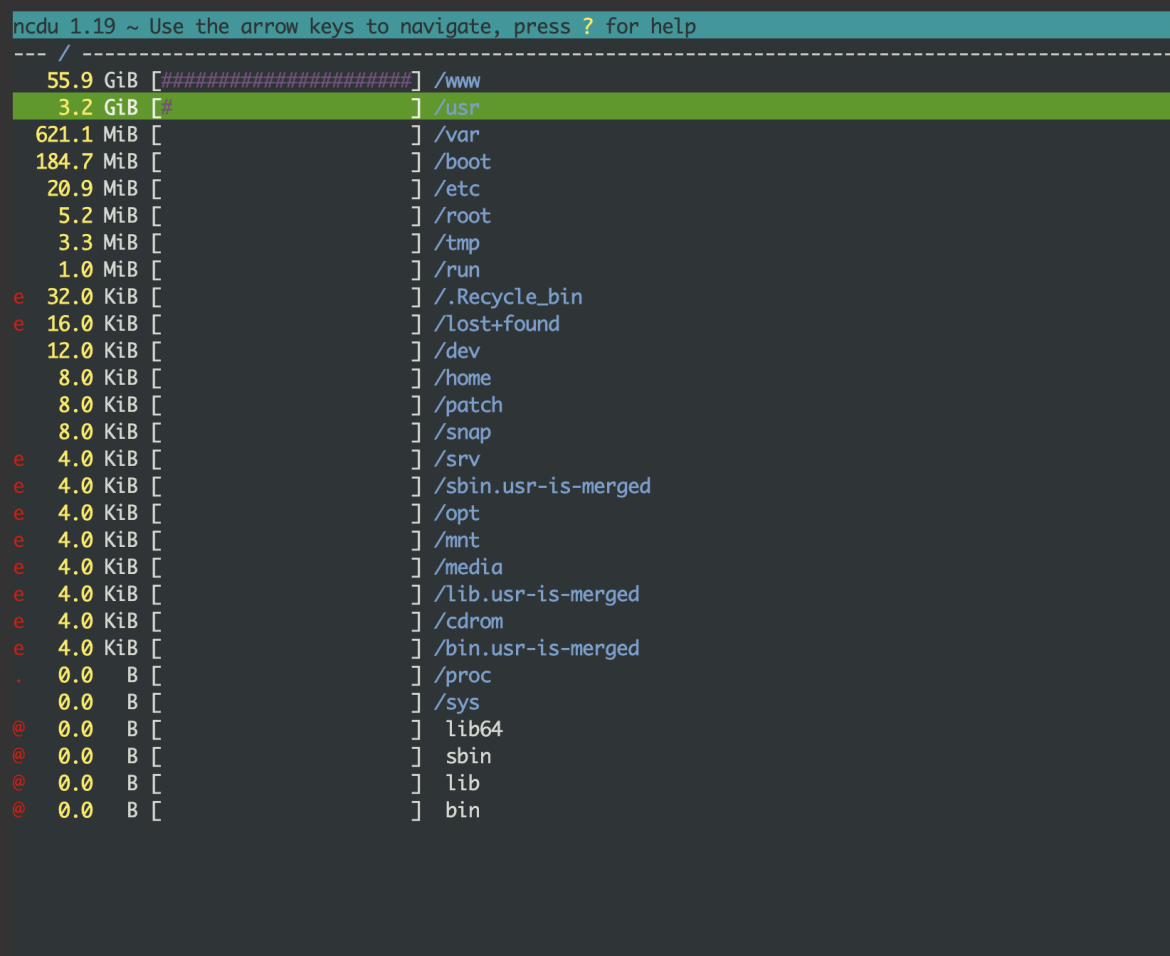
When using a VPS, especially VPSs running Linux operating systems, in some cases users may notice that their VPS is using an unusually large amount of disk space but do not know how to identify which directories or files are large so they can delete them.
Besides using the du command to check directory sizes, there is another, easier method for non-technical users: using the ncdu tool. This software can be easily installed on Linux VPSs running Ubuntu/Debian or CentOS/AlmaLinux/RockyLinux.
How to install ncdu
To install ncdu, simply install its package on your operating system using apt or dnf/yum.
On Ubuntu/Debian:
sudo apt-get install ncduOn CentOS/AlmaLinux/RockyLinux:
dnf install ncduHow to use ncdu to identify directory disk usage
Using ncdu is very simple. After installation, just enter the ncdu command and its interface will be displayed. You can use the Up (↑) and Down (↓) arrow keys to move the cursor. To enter a directory, press the Right arrow (→), and to go back to the previous directory, press the Left arrow (←).
If you want to delete a directory or file, move the cursor to it and press the d key to delete, then select yes to confirm.
With ncdu’s intuitive interface, you can easily see which directories are taking up the most space. You can then gradually navigate inside them and remove unnecessary data, freeing up disk space on your VPS for storing important files.